

Brightspeed Business
Hub Support
Brightspeed Business
Hub Support
Brightspeed Business
Hub Support
 Sign in to Business Hub

BAN Validation for Managing Your Account
BAN Validation for Managing Your Account
BAN Validation for Managing Your Account
Many self-service portals require a correct billing account number (BAN) before the system will show account details, billing history or support options.
Validating your BAN within the Business Hub will let you know which portal should be used to manage that account.
You can validate your BAN after logging into the Brightspeed Business Hub.
After logging in, navigate to the Billing module on the bottom left corner of your account home page.
Many self-service portals require a correct billing account number (BAN) before the system will show account details, billing history or support options.
Validating your BAN within the Business Hub will let you know which portal should be used to manage that account.
You can validate your BAN after logging into the Brightspeed Business Hub.
After logging in, navigate to the Billing module on the bottom left corner of your account home page.
Many self-service portals require a correct billing account number (BAN) before the system will show account details, billing history or support options.
Validating your BAN within the Business Hub will let you know which portal should be used to manage that account.
You can validate your BAN after logging into the Brightspeed Business Hub.
After logging in, navigate to the Billing module on the bottom left corner of your account home page.
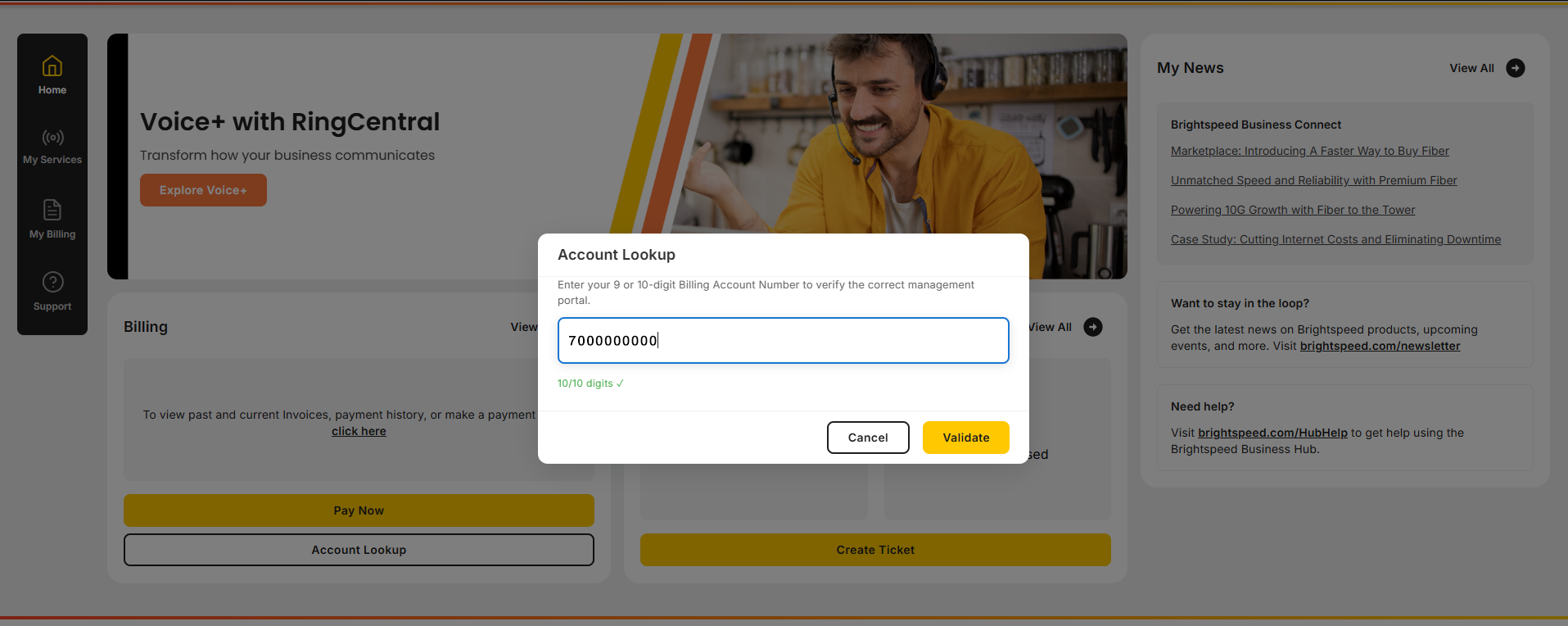
Click the Account Lookup button.
In the pop-out window, enter your 9- or 10-digit BAN found on the top right corner of your invoice and click Validate.
Note that you must enter a minimum of 9 digits to validate.
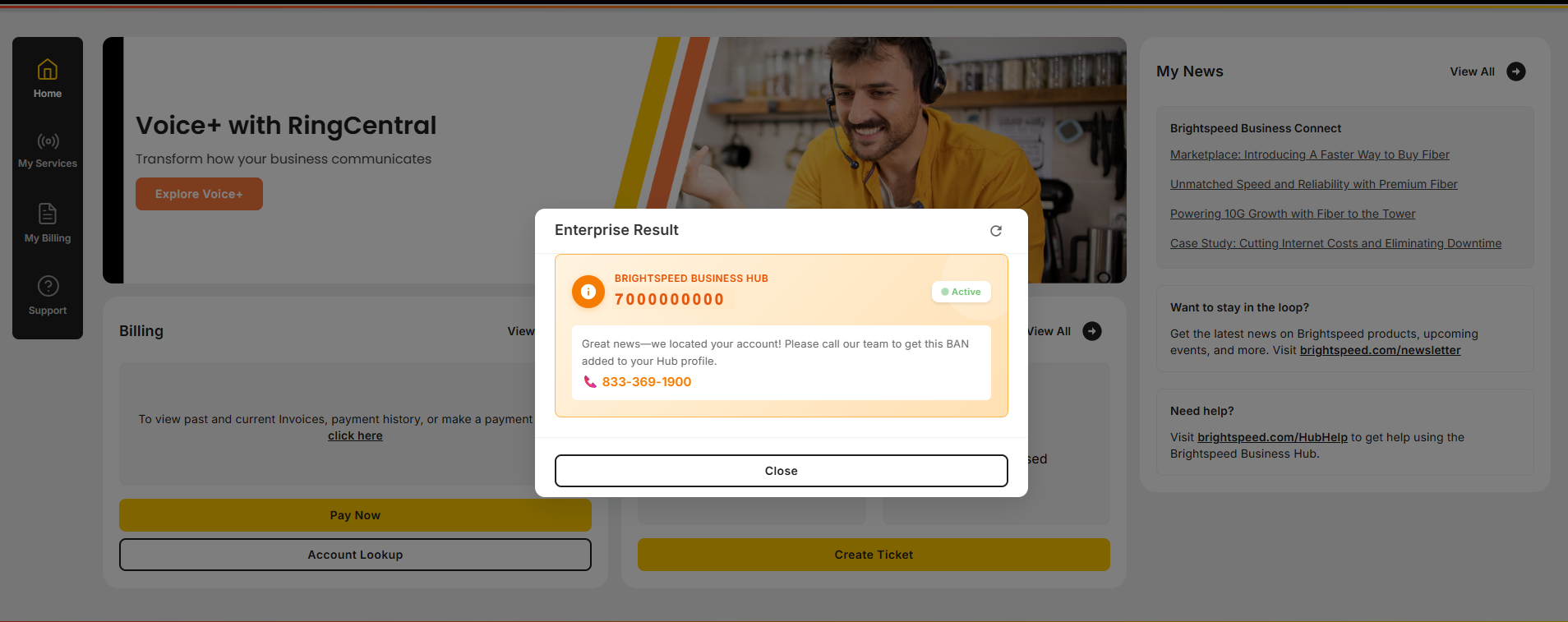
Once your BAN is validated, you will be directed to the correct customer portal, either the Business Hub or My Brightspeed, to manage your account.
Click the Account Lookup button.
In the pop-out window, enter your 9- or 10-digit BAN found on the top right corner of your invoice and click Validate.
Note that you must enter a minimum of 9 digits to validate.
Once your BAN is validated, you will be directed to the correct customer portal, either the Business Hub or My Brightspeed, to manage your account.
Click the Account Lookup button.
In the pop-out window, enter your 9- or 10-digit BAN found on the top right corner of your invoice and click Validate.
Note that you must enter a minimum of 9 digits to validate.
Once your BAN is validated, you will be directed to the correct customer portal, either the Business Hub or My Brightspeed, to manage your account.