

Brightspeed Business
Hub Support
Brightspeed Business
Hub Support
Brightspeed Business
Hub Support
 Sign in to Business Hub

Change Your Business Hub Username or Password
Change Your Business Hub Username or Password
Change Your Business Hub Username or Password
For security reasons, you should change your password periodically. If you ever forget your Business Hub username or password, you can retrieve them without contacting us.
To change your Business Hub password:
- Sign in to the Business Hub.
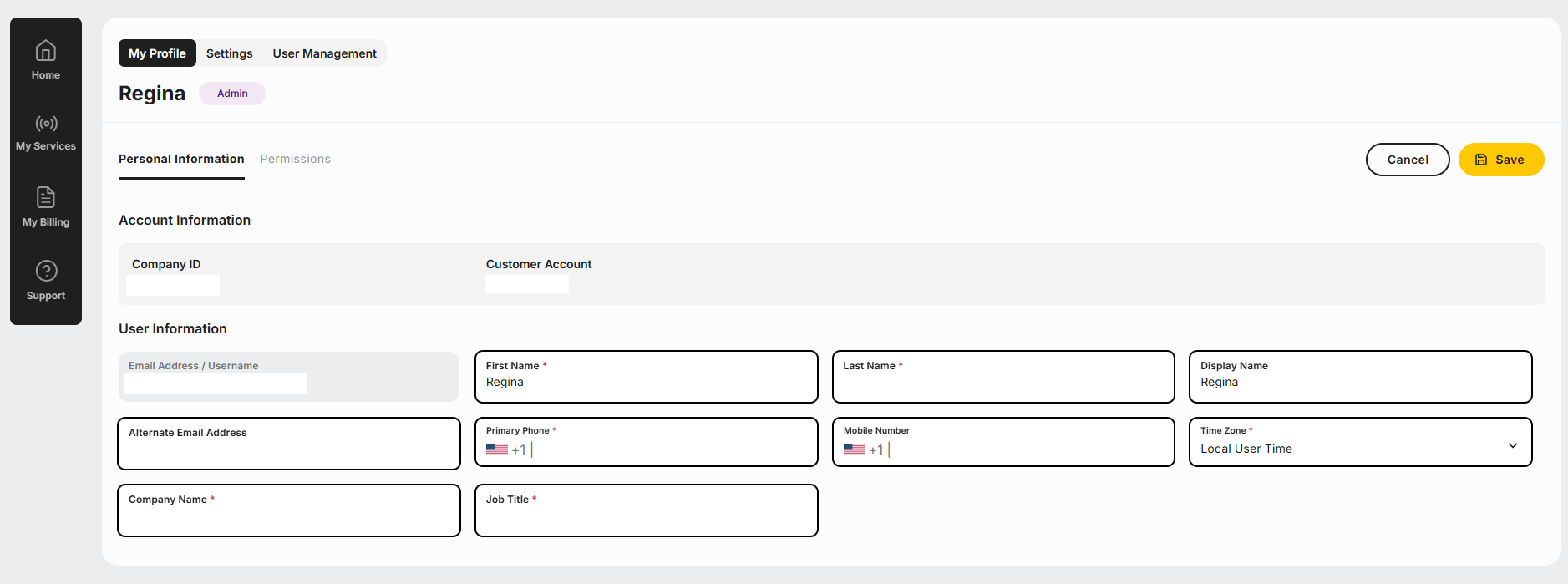
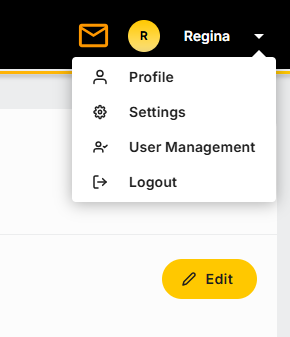
- In the upper-right corner, click your username, then click My Profile.
For security reasons, you should change your password periodically. If you ever forget your Business Hub username or password, you can retrieve them without contacting us.
To change your Business Hub password:
- Sign in to the Business Hub.
- In the upper-right corner, click your username, then click My Profile.
For security reasons, you should change your password periodically. If you ever forget your Business Hub username or password, you can retrieve them without contacting us.
To change your Business Hub password:
- Sign in to the Business Hub.
- In the upper-right corner, click your username, then click My Profile.
- Click Update User Details.
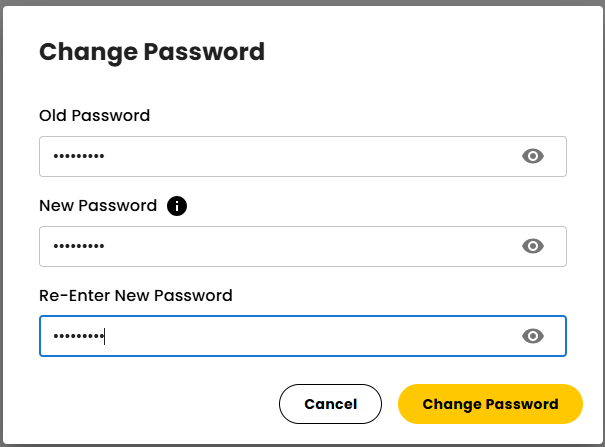
- Type your new password in both the New Password and Confirm Password fields.
Note: We've recently increased our security. Depending on when you last updated your profile, you may also need to update your security questions.
- Click Update User Details.
- Type your new password in both the New Password and Confirm Password fields.
Note: We've recently increased our security. Depending on when you last updated your profile, you may also need to update your security questions.
- Click Update User Details.
- Type your new password in both the New Password and Confirm Password fields.
Note: We've recently increased our security. Depending on when you last updated your profile, you may also need to update your security questions.
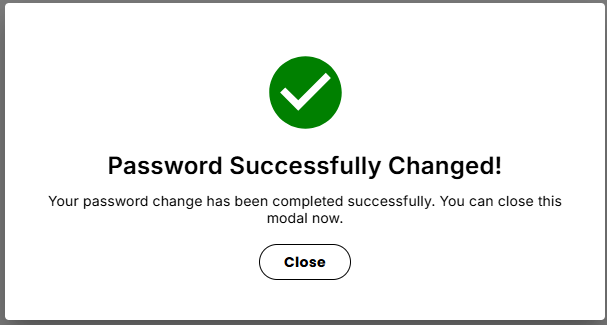
- While you're changing your password, it's a good idea to verify your profile information and make updates as needed.
- When you're done, click Save.
- While you're changing your password, it's a good idea to verify your profile information and make updates as needed.
- When you're done, click Save.
- While you're changing your password, it's a good idea to verify your profile information and make updates as needed.
- When you're done, click Save.