


Brightspeed Business
Hub Support
Brightspeed Business
Hub Support
Brightspeed Business
Hub Support
 Sign in to Business Hub

Retrieve Your Business Hub Username or Password
Retrieve Your Business Hub Username or Password
Retrieve Your Business Hub Username or Password
If you've forgotten your username or password, you can retrieve one or both using the following instructions.
Note: If you've tried to sign in several times with invalid credentials, your user profile may be locked. If your user profile is locked, you can retrieve your password after 30 minutes.
To update your password:
- 1. Open a browser and go to hub.brightspeed.com.
- 2. Click Forgot Username/Password.
- 3. Enter the email address associated with your Business Hub account to receive a verification code.
If you've forgotten your username or password, you can retrieve one or both using the following instructions.
Note: If you've tried to sign in several times with invalid credentials, your user profile may be locked. If your user profile is locked, you can retrieve your password after 30 minutes.
To update your password:
- 1. Open a browser and go to hub.brightspeed.com.
- 2. Click Forgot Username/Password.
- 3. Enter the email address associated with your Business Hub account to receive a verification code.
If you've forgotten your username or password, you can retrieve one or both using the following instructions.
Note: If you've tried to sign in several times with invalid credentials, your user profile may be locked. If your user profile is locked, you can retrieve your password after 30 minutes.
To update your password:
- 1. Open a browser and go to hub.brightspeed.com.
- 2. Click Forgot Username/Password.
- 3. Enter the email address associated with your Business Hub account to receive a verification code.
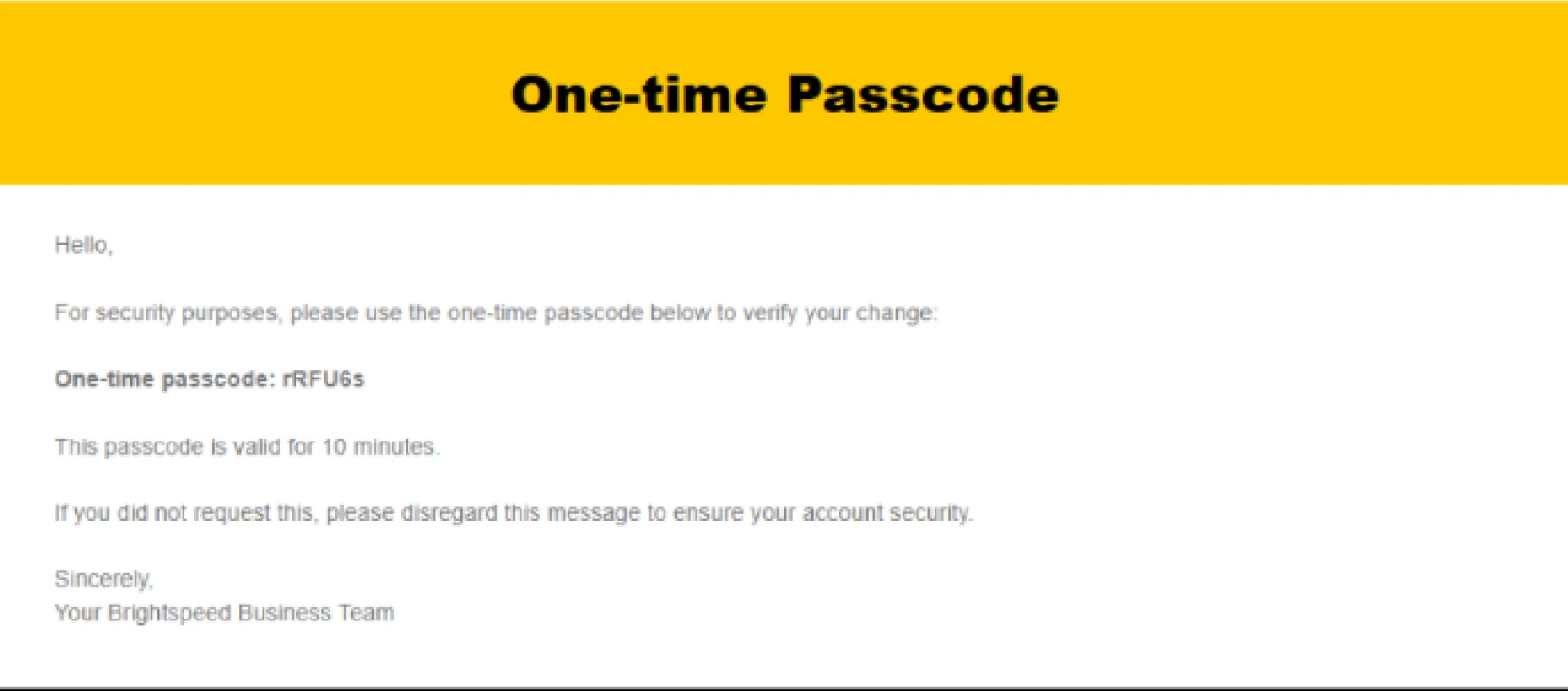
- 4. Enter the code sent to your email address and click Verify & Update to submit.
- 4. Enter the code sent to your email address and click Verify & Update to submit.
- 4. Enter the code sent to your email address and click Verify & Update to submit.
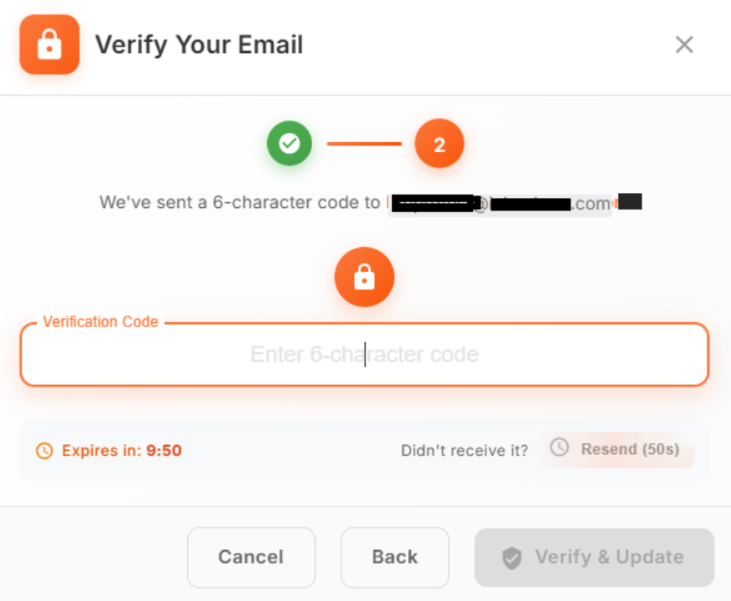
- 5. Once your email address is verified, you'll receive an email with a new, temporary password.
- 6. Click Proceed to Login.
- 7. Type your username and temporary password, and then click Sign In. You'll be prompted to choose a new password.
- 8. Click Submit & Go to Business Hub.
Note: Please follow the instructions sent via email to sign in. If you don't receive an email from Brightspeed Business or have issues with any part of the previous steps, please contact us to restore your access to the Business Hub.
- 5. Once your email address is verified, you'll receive an email with a new, temporary password.
- 6. Click Proceed to Login.
- 7. Type your username and temporary password, and then click Sign In. You'll be prompted to choose a new password.
- 8. Click Submit & Go to Business Hub.
Note: Please follow the instructions sent via email to sign in. If you don't receive an email from Brightspeed Business or have issues with any part of the previous steps, please contact us to restore your access to the Business Hub.
- 5. Once your email address is verified, you'll receive an email with a new, temporary password.
- 6. Click Proceed to Login.
- 7. Type your username and temporary password, and then click Sign In. You'll be prompted to choose a new password.
- 8. Click Submit & Go to Business Hub.
Note: Please follow the instructions sent via email to sign in. If you don't receive an email from Brightspeed Business or have issues with any part of the previous steps, please contact us to restore your access to the Business Hub.