


Brightspeed Business
Hub Support
Brightspeed Business
Hub Support
Brightspeed Business
Hub Support
 Sign in to Business Hub

Settings
Settings
Settings
Navigate to Settings either via the drop-down menu or by clicking the Settings tab in My Profile.
- Or -
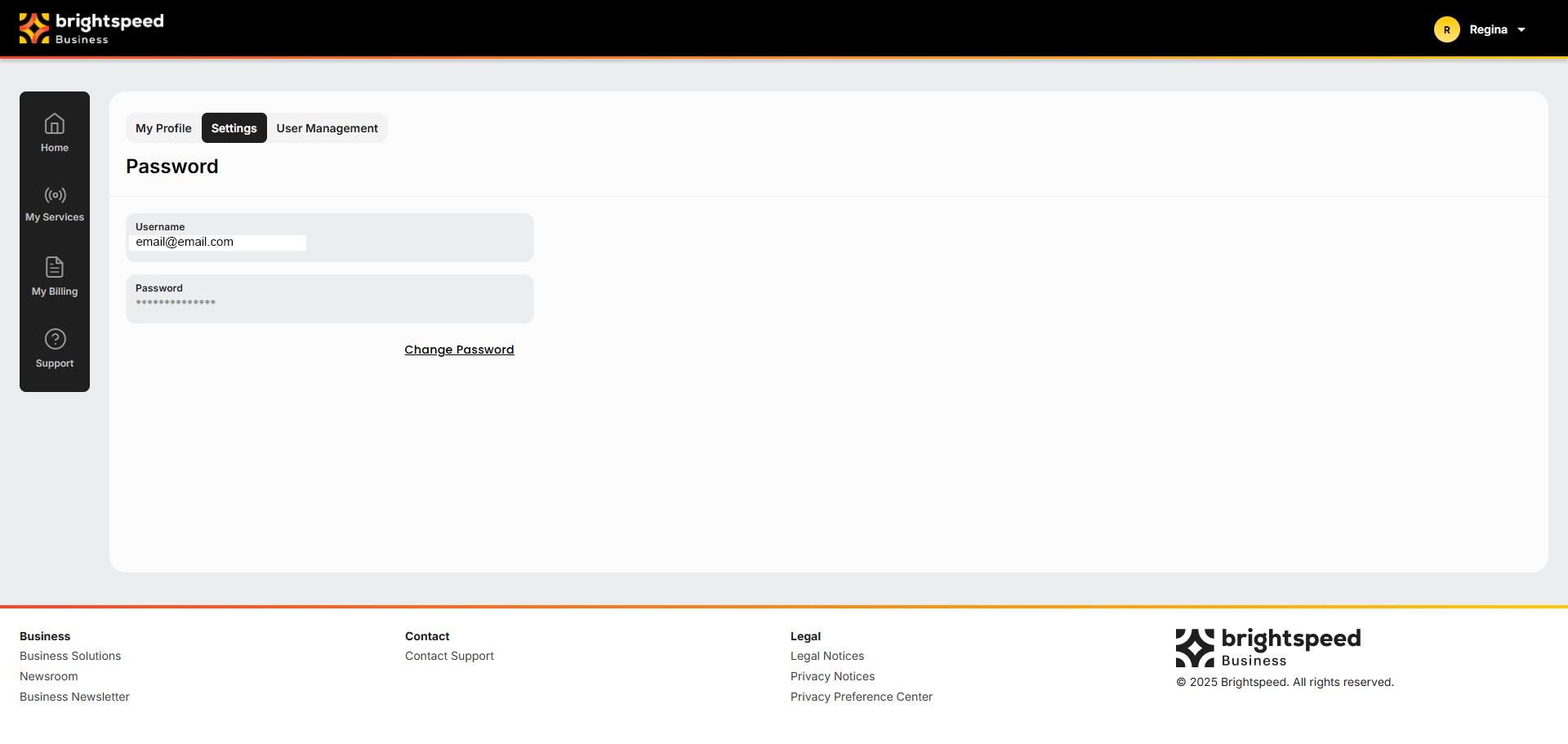
The following screen displays:
Click Change Password to display the following:
Type your existing password in the first field. Click to make the password visible, if needed.
Create a new password.
Navigate to Settings either via the drop-down menu or by clicking the Settings tab in My Profile.
- Or -
The following screen displays:
Click Change Password to display the following:
Type your existing password in the first field. Click to make the password visible, if needed.
Create a new password.
Navigate to Settings either via the drop-down menu or by clicking the Settings tab in My Profile.
- Or -
The following screen displays:
Click Change Password to display the following:
Type your existing password in the first field. Click to make the password visible, if needed.
Create a new password.
Password Requirements:
Minimum 8 characters
Maximum 256 characters
New Password cannot be the same as the Old Password
Must have at least one:
- Lowercase letter
- Uppercase letter
- Number
- Special character (!@#$%^, etc)
Reenter your new password. Once all fields are populated successfully, the gray Change Password button will change to yellow.
Click Change Password.
Click Close. You will remain logged in, but the next time you log in, you must use your new password.
Password Requirements:
Minimum 8 characters
Maximum 256 characters
New Password cannot be the same as the Old Password
Must have at least one:
- Lowercase letter
- Uppercase letter
- Number
- Special character (!@#$%^, etc)
Reenter your new password. Once all fields are populated successfully, the gray Change Password button will change to yellow.
Click Change Password.
Click Close. You will remain logged in, but the next time you log in, you must use your new password.
Password Requirements:
Minimum 8 characters
Maximum 256 characters
New Password cannot be the same as the Old Password
Must have at least one:
- Lowercase letter
- Uppercase letter
- Number
- Special character (!@#$%^, etc)
Reenter your new password. Once all fields are populated successfully, the gray Change Password button will change to yellow.
Click Change Password.
Click Close. You will remain logged in, but the next time you log in, you must use your new password.