


Brightspeed Business
Hub Support
Brightspeed Business
Hub Support
Brightspeed Business
Hub Support
 Sign in to Business Hub

Sign in to Business Hub for the First Time
Sign in to Business Hub for the First Time
Sign in to Business Hub for the First Time
When you first sign in to the Business Hub, you'll need to do a few things: acknowledge the user agreement, set a password, and create security questions with answers.
When you first sign in to the Business Hub, you'll need to do a few things: acknowledge the user agreement, set a password, and create security questions with answers.
When you first sign in to the Business Hub, you'll need to do a few things: acknowledge the user agreement, set a password, and create security questions with answers.
To sign in to the Business Hub:
- Open a browser and go to hub.brightspeed.com.
- Click Continue.
- Type your username, and then click Next.
- Type your temporary password, and then click Sign In.
Note: If you registered yourself for the Business Hub, type the password you chose then.
- Read through the user agreement and click Agree.
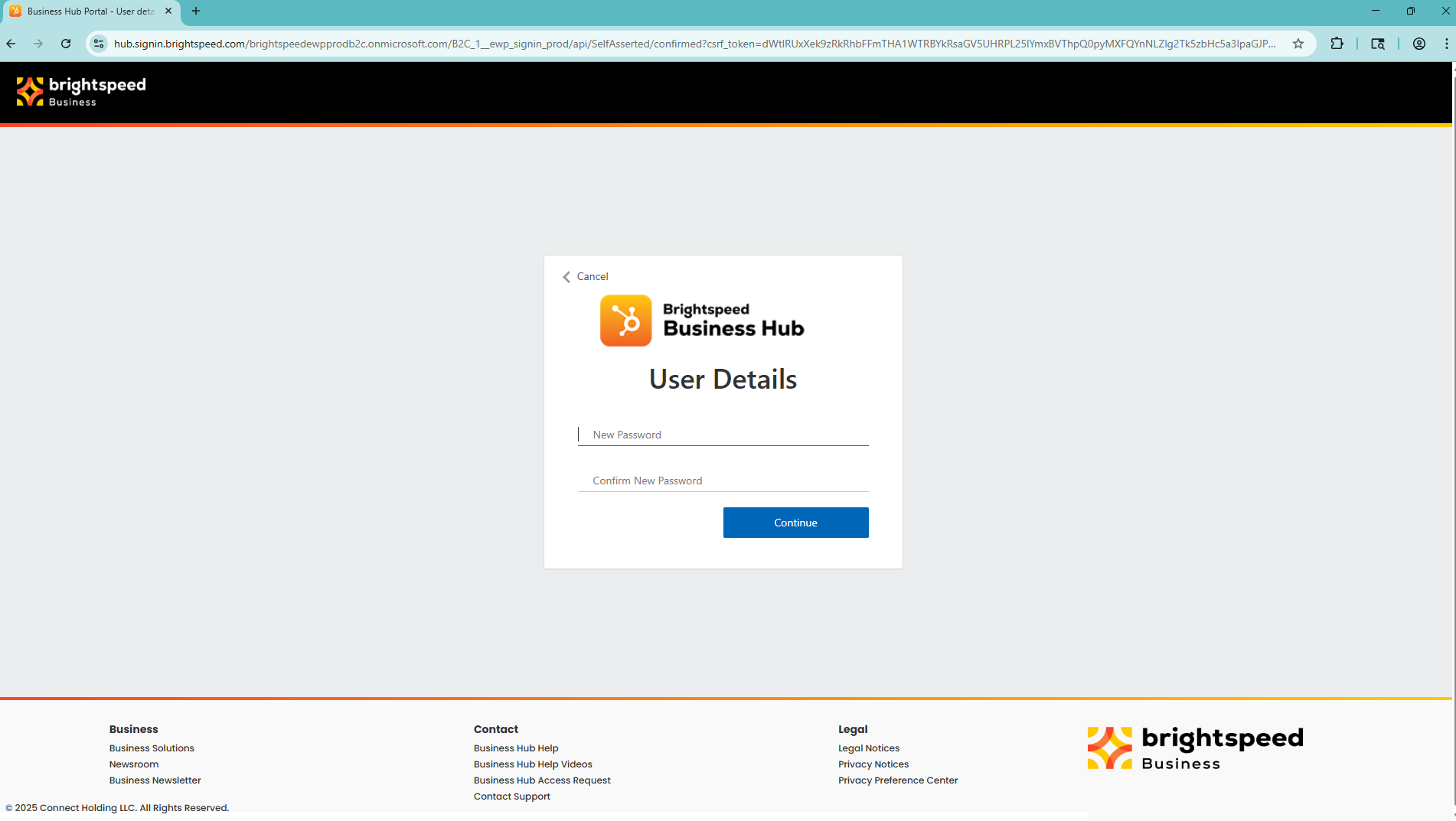
- In the Reset Password section, populate the Current Password, New Password, and Confirm New Password fields.
To sign in to the Business Hub:
- Open a browser and go to hub.brightspeed.com.
- Click Continue.
- Type your username, and then click Next.
- Type your temporary password, and then click Sign In.
Note: If you registered yourself for the Business Hub, type the password you chose then.
- Read through the user agreement and click Agree.
- In the Reset Password section, populate the Current Password, New Password, and Confirm New Password fields.
To sign in to the Business Hub:
- Open a browser and go to hub.brightspeed.com.
- Click Continue.
- Type your username, and then click Next.
- Type your temporary password, and then click Sign In.
Note: If you registered yourself for the Business Hub, type the password you chose then.
- Read through the user agreement and click Agree.
- In the Reset Password section, populate the Current Password, New Password, and Confirm New Password fields.
×
![]()
- Click Save & Go to Business Hub.
You've finished setting up your Business Hub user profile. The Business Hub homepage appears. Use the tabs on the left to manage your services: Admin, Services, Billing, and Support. The homepage contains widgets that help you quickly access data related to your Brightspeed service, such as open orders and tickets and upcoming network maintenance.
- Next, double check your profile information (phone number, address, etc.). In the upper-right corner above the main navigation tabs, click your username and then click My Profile.
- Verify your information. If everything looks good, you're ready to start using the Business Hub. If you need to make changes, click Update User Details. Make your changes, and then click Return to Profile.
- Click Save & Go to Business Hub.
You've finished setting up your Business Hub user profile. The Business Hub homepage appears. Use the tabs on the left to manage your services: Admin, Services, Billing, and Support. The homepage contains widgets that help you quickly access data related to your Brightspeed service, such as open orders and tickets and upcoming network maintenance.
- Next, double check your profile information (phone number, address, etc.). In the upper-right corner above the main navigation tabs, click your username and then click My Profile.
- Verify your information. If everything looks good, you're ready to start using the Business Hub. If you need to make changes, click Update User Details. Make your changes, and then click Return to Profile.
- Click Save & Go to Business Hub.
You've finished setting up your Business Hub user profile. The Business Hub homepage appears. Use the tabs on the left to manage your services: Admin, Services, Billing, and Support. The homepage contains widgets that help you quickly access data related to your Brightspeed service, such as open orders and tickets and upcoming network maintenance.
- Next, double check your profile information (phone number, address, etc.). In the upper-right corner above the main navigation tabs, click your username and then click My Profile.
- Verify your information. If everything looks good, you're ready to start using the Business Hub. If you need to make changes, click Update User Details. Make your changes, and then click Return to Profile.