


Brightspeed Business
Hub Support
Brightspeed Business
Hub Support
Brightspeed Business
Hub Support
 Sign in to Business Hub

Set Up and Sign In to Brightspeed Business Hub for the First Time
Set Up and Sign In to Brightspeed Business Hub for the First Time
Set Up and Sign In to Brightspeed Business Hub for the First Time
Setting up your Brightspeed Business Hub account for the first time is easy. Follow these steps to verify your email address, create your password, confirm your profile, and access your account.
Setting up your Brightspeed Business Hub account for the first time is easy. Follow these steps to verify your email address, create your password, confirm your profile, and access your account.
Setting up your Brightspeed Business Hub account for the first time is easy. Follow these steps to verify your email address, create your password, confirm your profile, and access your account.
Set up your Brightspeed Business Hub account
- 1. Open the welcome email you received from Brightspeed Business, and select the Brightspeed Business Hub link.
- 2. On the User Details screen, enter the same email address where you received your welcome email, then select Send validation code.
Set up your Brightspeed Business Hub account
- 1. Open the welcome email you received from Brightspeed Business, and select the Brightspeed Business Hub link.
- 2. On the User Details screen, enter the same email address where you received your welcome email, then select Send validation code.
Set up your Brightspeed Business Hub account
- 1. Open the welcome email you received from Brightspeed Business, and select the Brightspeed Business Hub link.
- 2. On the User Details screen, enter the same email address where you received your welcome email, then select Send validation code.
- 3. Check your email for a validation code.
Note: If you don't receive the email, confirm that your email address is correct and select Send new code. - 4. Verify your email address by entering the code on the User Details screen and select Verify code.
- 5. Once your email address has been successfully verified, select Continue.
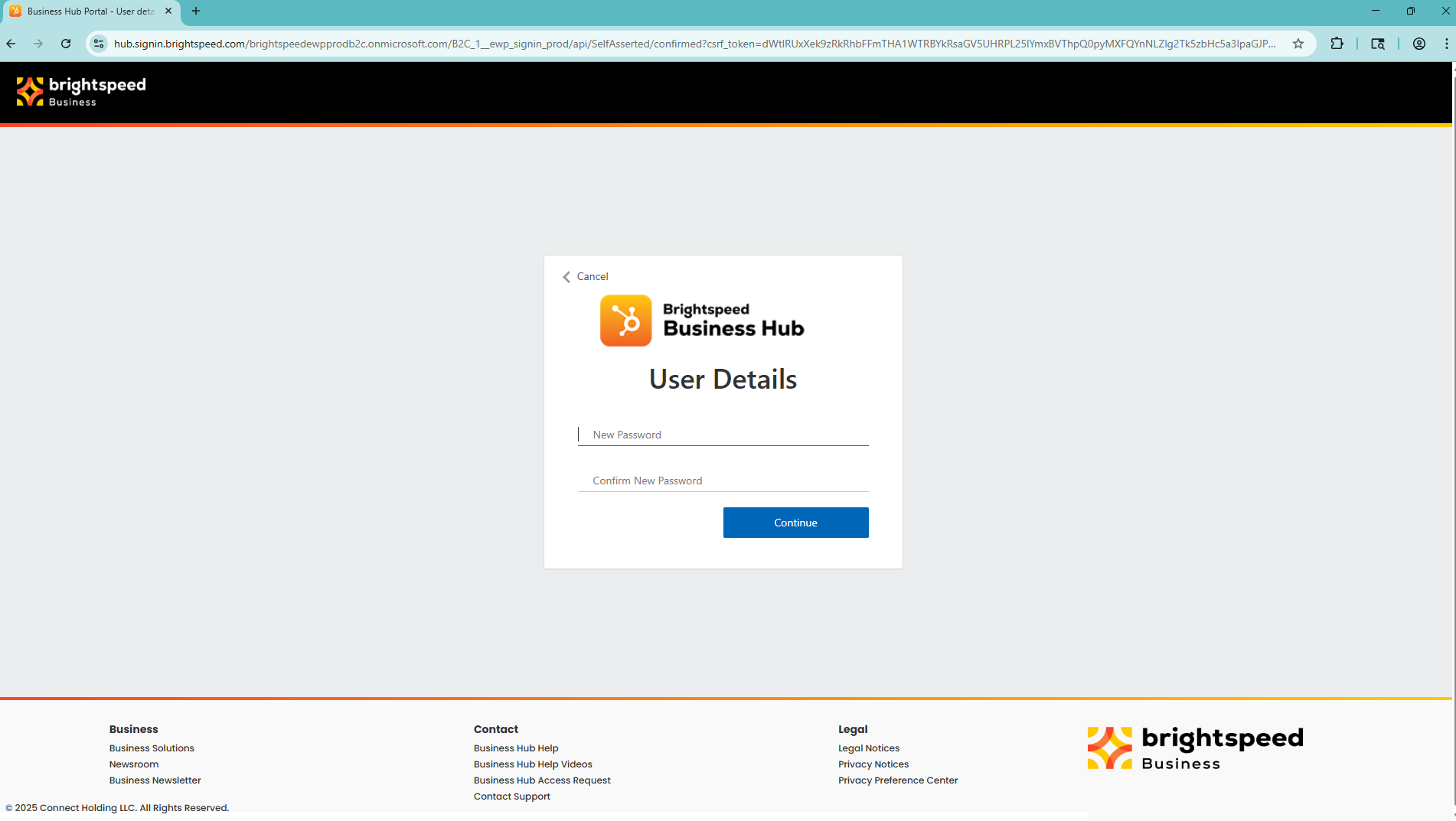
- 6. Enter a new password, then enter it again in the Confirm New Password field.
- 7. Review and accept the Terms and Conditions.
Note: You must accept the Terms and Conditions to continue to the Brightspeed Business Hub. - 8. Review your user profile to ensure sure the information in your User Profile is accurate. Fields marked with an asterisk (*) are required.
- 9. Once your profile information is complete, select Confirm.
Update your Business Hub profile
Once you're signed in, you can review or update your profile information:
- 1. Select Profile from the header menu.
- 2. Select Edit Profile.
- 3. Review or update your profile information as needed.
Note: Parent Account and Customer Account information cannot be edited from your profile. Contact your Customer Administrator if this information needs to be updated.
What's next?
Bookmark the Brightspeed Business Hub for easy access to your business account, billing, services, and support.
- 3. Check your email for a validation code.
Note: If you don't receive the email, confirm that your email address is correct and select Send new code. - 4. Verify your email address by entering the code on the User Details screen and select Verify code.
- 5. Once your email address has been successfully verified, select Continue.
- 6. Enter a new password, then enter it again in the Confirm New Password field.
- 7. Review and accept the Terms and Conditions.
Note: You must accept the Terms and Conditions to continue to the Brightspeed Business Hub. - 8. Review your user profile to ensure sure the information in your User Profile is accurate. Fields marked with an asterisk (*) are required.
- 9. Once your profile information is complete, select Confirm.
Update your Business Hub profile
Once you're signed in, you can review or update your profile information:
- 1. Select Profile from the header menu.
- 2. Select Edit Profile.
- 3. Review or update your profile information as needed.
Note: Parent Account and Customer Account information cannot be edited from your profile. Contact your Customer Administrator if this information needs to be updated.
What's next?
Bookmark the Brightspeed Business Hub for easy access to your business account, billing, services, and support.
- 3. Check your email for a validation code.
Note: If you don't receive the email, confirm that your email address is correct and select Send new code. - 4. Verify your email address by entering the code on the User Details screen and select Verify code.
- 5. Once your email address has been successfully verified, select Continue.
- 6. Enter a new password, then enter it again in the Confirm New Password field.
- 7. Review and accept the Terms and Conditions.
Note: You must accept the Terms and Conditions to continue to the Brightspeed Business Hub. - 8. Review your user profile to ensure sure the information in your User Profile is accurate. Fields marked with an asterisk (*) are required.
- 9. Once your profile information is complete, select Confirm.
Update your Business Hub profile
Once you're signed in, you can review or update your profile information:
- 1. Select Profile from the header menu.
- 2. Select Edit Profile.
- 3. Review or update your profile information as needed.
Note: Parent Account and Customer Account information cannot be edited from your profile. Contact your Customer Administrator if this information needs to be updated.
What's next?
Bookmark the Brightspeed Business Hub for easy access to your business account, billing, services, and support.