


Brightspeed Business
Hub Support
Brightspeed Business
Hub Support
Brightspeed Business
Hub Support
 Sign in to Business Hub

How to Add Variance and Trend Tool Options
Learn how to use trend and variance tools to compare billing activity, track changes in spending and identify billing trends across your accounts.
How to Add Variance and Trend Tool Options
Learn how to use trend and variance tools to compare billing activity, track changes in spending and identify billing trends across your accounts.
How to Add Variance and Trend Tool Options
Learn how to use trend and variance tools to compare billing activity, track changes in spending and identify billing trends across your accounts.
How to Add Variance and Trend Columns to the Statements List
1. From the top menu, click Statements.
2. Select the column selector icon, next to Views.
3. From Available Columns select Monthly Trend, Variance, Variance %, Previous Bill, and Previous Month to add to your statement list view. Use the Shift key to select multiple data types.
How to Add Variance and Trend Columns to the Statements List
1. From the top menu, click Statements.
2. Select the column selector icon, next to Views.
3. From Available Columns select Monthly Trend, Variance, Variance %, Previous Bill, and Previous Month to add to your statement list view. Use the Shift key to select multiple data types.
How to Add Variance and Trend Columns to the Statements List
1. From the top menu, click Statements.
2. Select the column selector icon, next to Views.
3. From Available Columns select Monthly Trend, Variance, Variance %, Previous Bill, and Previous Month to add to your statement list view. Use the Shift key to select multiple data types.
4. Use the > and < buttons to include or exclude data types from the new view. Use the >> and << buttons to select and include or exclude all data types available. Reorder the columns using the up and down arrow buttons.
5. Click Apply Column View.
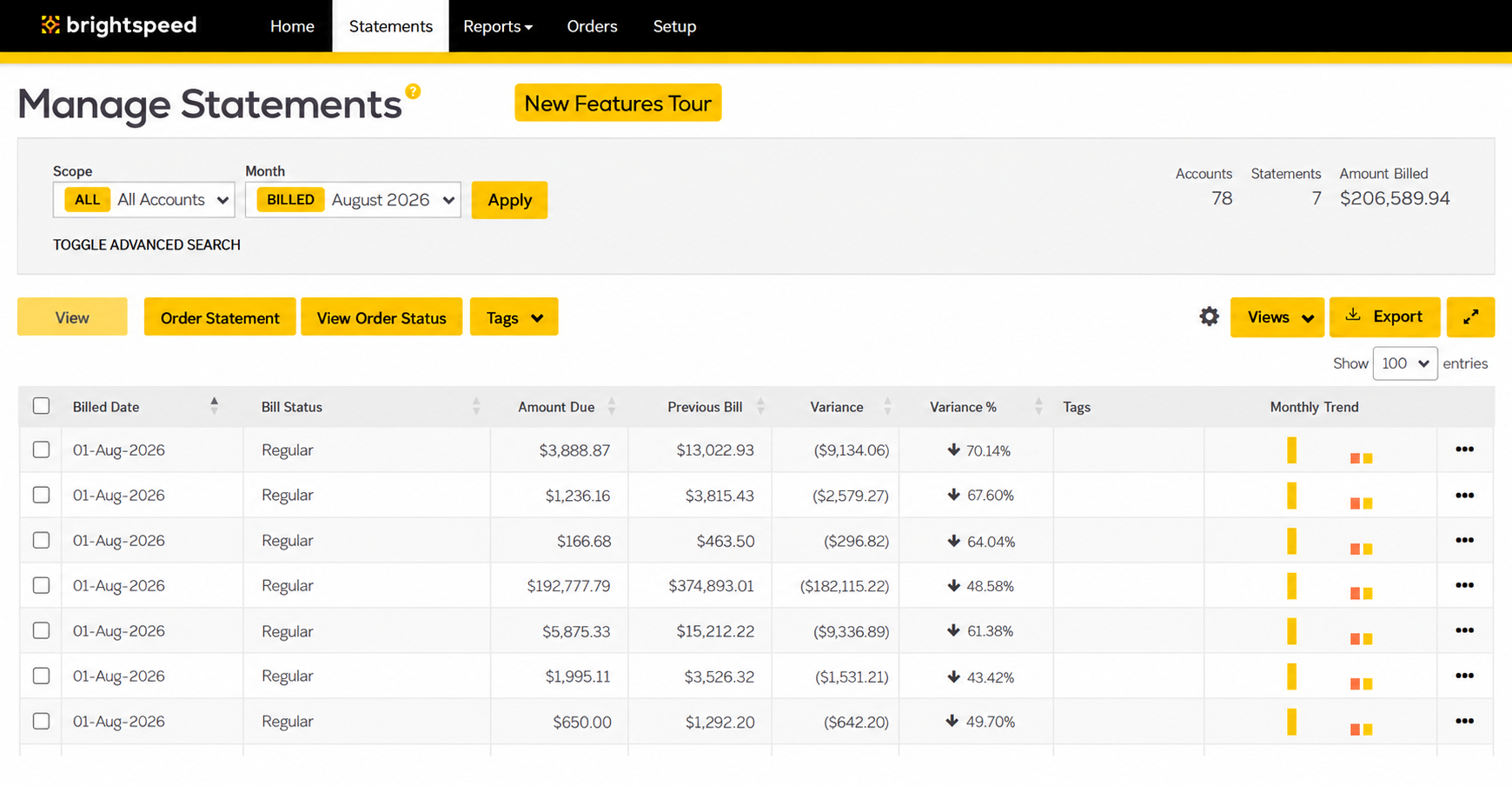
6. Your new view will display the variance and trend columns.
4. Use the > and < buttons to include or exclude data types from the new view. Use the >> and << buttons to select and include or exclude all data types available. Reorder the columns using the up and down arrow buttons.
5. Click Apply Column View.
6. Your new view will display the variance and trend columns.
4. Use the > and < buttons to include or exclude data types from the new view. Use the >> and << buttons to select and include or exclude all data types available. Reorder the columns using the up and down arrow buttons.
5. Click Apply Column View.
6. Your new view will display the variance and trend columns.