


Brightspeed Business
Hub Support
Brightspeed Business
Hub Support
Brightspeed Business
Hub Support
 Sign in to Business Hub

Request a PDF Copy of an Invoice
Request a PDF Copy of an Invoice
Request a PDF Copy of an Invoice
The Business Hub stores a current invoice and invoices from the previous 23 months. If you need to save a copy of your invoice, download and save it for future reference.
The Business Hub stores a current invoice and invoices from the previous 23 months. If you need to save a copy of your invoice, download and save it for future reference.
The Business Hub stores a current invoice and invoices from the previous 23 months. If you need to save a copy of your invoice, download and save it for future reference.
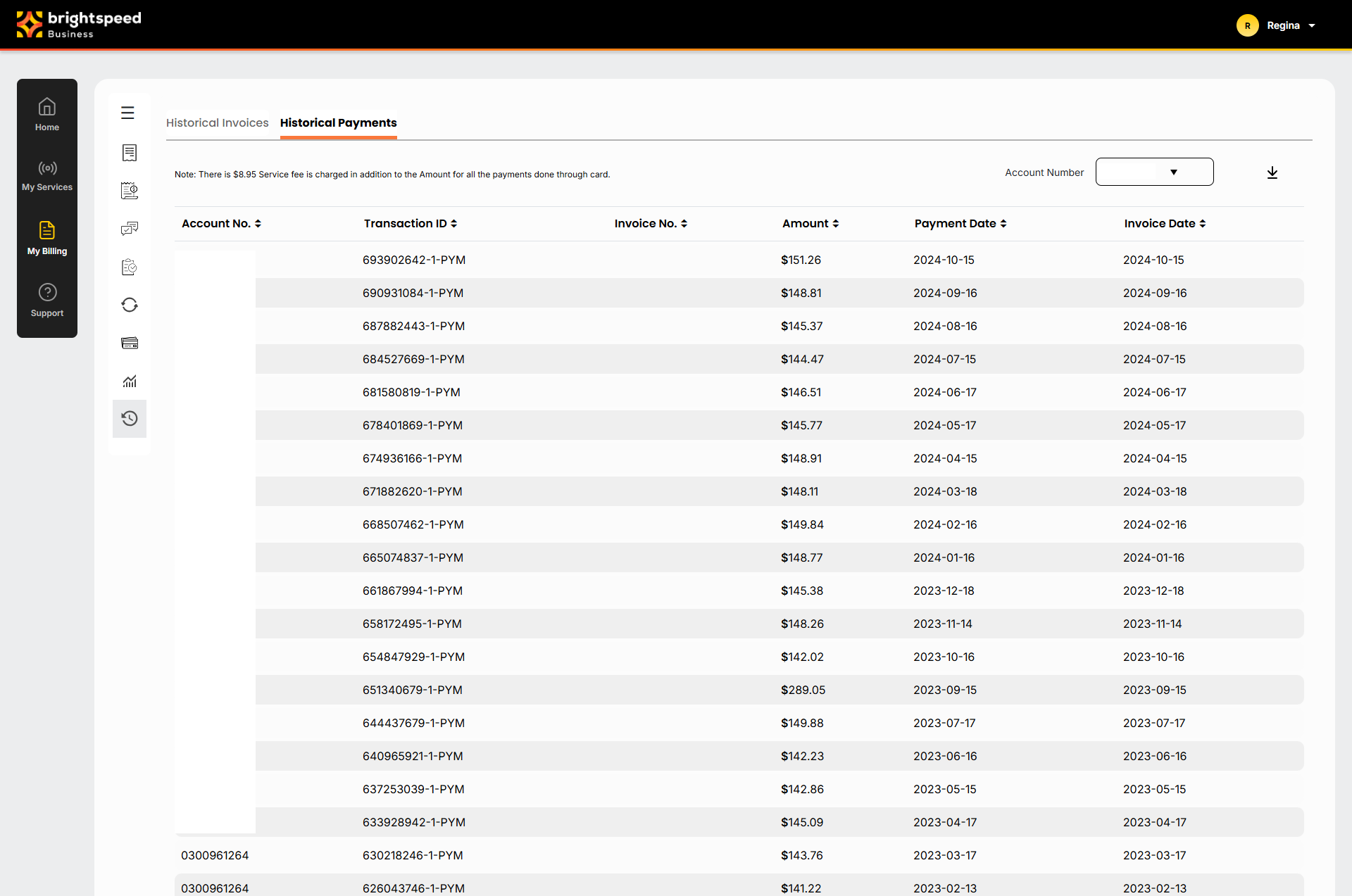
To request a PDF copy of an invoice:
- Sign in to the Business Hub.
- Click Billing > Invoices.
- Search for the account(s) by doing one of the following:
- Scroll through the list of accounts. If you have more than 20 accounts, use the arrows at the bottom of the page to move between pages.
- Sort your accounts using the column headings (e.g., Account Number). You can toggle between descending and ascending order using the arrows to the right of the column heading.
- Filter your accounts by account group by selecting an option from the All Account Groups list.
- Search for a specific account (by invoice number, account number, etc.) using the Search field.
- After you find the account(s) you want to request a PDF copy of an invoice for, do one of the following:
- To request a PDF copy of a single invoice, click the icon in the Actions column on the row for the account.
- To request a PDF copy of multiple invoices, select the checkbox on the row for the accounts, then click Download PDFs.
Your request is submitted. Depending on the type of account, the PDF downloads automatically. When the PDF is ready, you’ll receive an email. Most PDFs are available for download within a few minutes. To view the status of your request and download the requested PDF, click View Invoices.
If you don't receive an email notifying you that your PDF is ready to print, update your contact information or change your notification settings. You can also track the status of your request in the Business Hub. Once the PDF is ready, print a copy or download and save the invoice. Be sure to download and save all PDFs you want to keep. The Business Hub only saves requested PDFs for 30 days.
To request a PDF copy of an invoice:
- Sign in to the Business Hub.
- Click Billing > Invoices.
- Search for the account(s) by doing one of the following:
- Scroll through the list of accounts. If you have more than 20 accounts, use the arrows at the bottom of the page to move between pages.
- Sort your accounts using the column headings (e.g., Account Number). You can toggle between descending and ascending order using the arrows to the right of the column heading.
- Filter your accounts by account group by selecting an option from the All Account Groups list.
- Search for a specific account (by invoice number, account number, etc.) using the Search field.
- After you find the account(s) you want to request a PDF copy of an invoice for, do one of the following:
- To request a PDF copy of a single invoice, click the icon in the Actions column on the row for the account.
- To request a PDF copy of multiple invoices, select the checkbox on the row for the accounts, then click Download PDFs.
Your request is submitted. Depending on the type of account, the PDF downloads automatically. When the PDF is ready, you’ll receive an email. Most PDFs are available for download within a few minutes. To view the status of your request and download the requested PDF, click View Invoices.
If you don't receive an email notifying you that your PDF is ready to print, update your contact information or change your notification settings. You can also track the status of your request in the Business Hub. Once the PDF is ready, print a copy or download and save the invoice. Be sure to download and save all PDFs you want to keep. The Business Hub only saves requested PDFs for 30 days.
To request a PDF copy of an invoice:
- Sign in to the Business Hub.
- Click Billing > Invoices.
- Search for the account(s) by doing one of the following:
- Scroll through the list of accounts. If you have more than 20 accounts, use the arrows at the bottom of the page to move between pages.
- Sort your accounts using the column headings (e.g., Account Number). You can toggle between descending and ascending order using the arrows to the right of the column heading.
- Filter your accounts by account group by selecting an option from the All Account Groups list.
- Search for a specific account (by invoice number, account number, etc.) using the Search field.
- After you find the account(s) you want to request a PDF copy of an invoice for, do one of the following:
- To request a PDF copy of a single invoice, click the icon in the Actions column on the row for the account.
- To request a PDF copy of multiple invoices, select the checkbox on the row for the accounts, then click Download PDFs.
Your request is submitted. Depending on the type of account, the PDF downloads automatically. When the PDF is ready, you’ll receive an email. Most PDFs are available for download within a few minutes. To view the status of your request and download the requested PDF, click View Invoices.
If you don't receive an email notifying you that your PDF is ready to print, update your contact information or change your notification settings. You can also track the status of your request in the Business Hub. Once the PDF is ready, print a copy or download and save the invoice. Be sure to download and save all PDFs you want to keep. The Business Hub only saves requested PDFs for 30 days.