


Brightspeed Business
Hub Support
Brightspeed Business
Hub Support
Brightspeed Business
Hub Support
 Sign in to Business Hub

Run a Speed Test
Run a Speed Test
Run a Speed Test
Use the Speed Test feature in your Brightspeed Business Hub to measure your current internet connection performance. A speed test can help you verify your download and upload speeds, check network responsiveness, and gather information if you're troubleshooting a connectivity issue.
For the most accurate results:
· Connect your device directly to your modem or router using an Ethernet cable whenever possible.
· Pause any large downloads, uploads, video streaming, or other high-bandwidth activities.
· Close unnecessary applications and browser tabs.
· If you're using a VPN, disconnect before running the test (if your organization's security policies allow). Speed tests performed over Wi-Fi or VPN may not reflect the full speed available to your service.
How to Run a Speed Test
1. Sign in to the Brightspeed Business Hub.
2. From the navigation bar, click My Services.
3. Select the Service you would like to run the speed test for.
Use the Speed Test feature in your Brightspeed Business Hub to measure your current internet connection performance. A speed test can help you verify your download and upload speeds, check network responsiveness, and gather information if you're troubleshooting a connectivity issue.
For the most accurate results:
· Connect your device directly to your modem or router using an Ethernet cable whenever possible.
· Pause any large downloads, uploads, video streaming, or other high-bandwidth activities.
· Close unnecessary applications and browser tabs.
· If you're using a VPN, disconnect before running the test (if your organization's security policies allow). Speed tests performed over Wi-Fi or VPN may not reflect the full speed available to your service.
How to Run a Speed Test
1. Sign in to the Brightspeed Business Hub.
2. From the navigation bar, click My Services.
3. Select the Service you would like to run the speed test for.
Use the Speed Test feature in your Brightspeed Business Hub to measure your current internet connection performance. A speed test can help you verify your download and upload speeds, check network responsiveness, and gather information if you're troubleshooting a connectivity issue.
For the most accurate results:
· Connect your device directly to your modem or router using an Ethernet cable whenever possible.
· Pause any large downloads, uploads, video streaming, or other high-bandwidth activities.
· Close unnecessary applications and browser tabs.
· If you're using a VPN, disconnect before running the test (if your organization's security policies allow). Speed tests performed over Wi-Fi or VPN may not reflect the full speed available to your service.
How to Run a Speed Test
1. Sign in to the Brightspeed Business Hub.
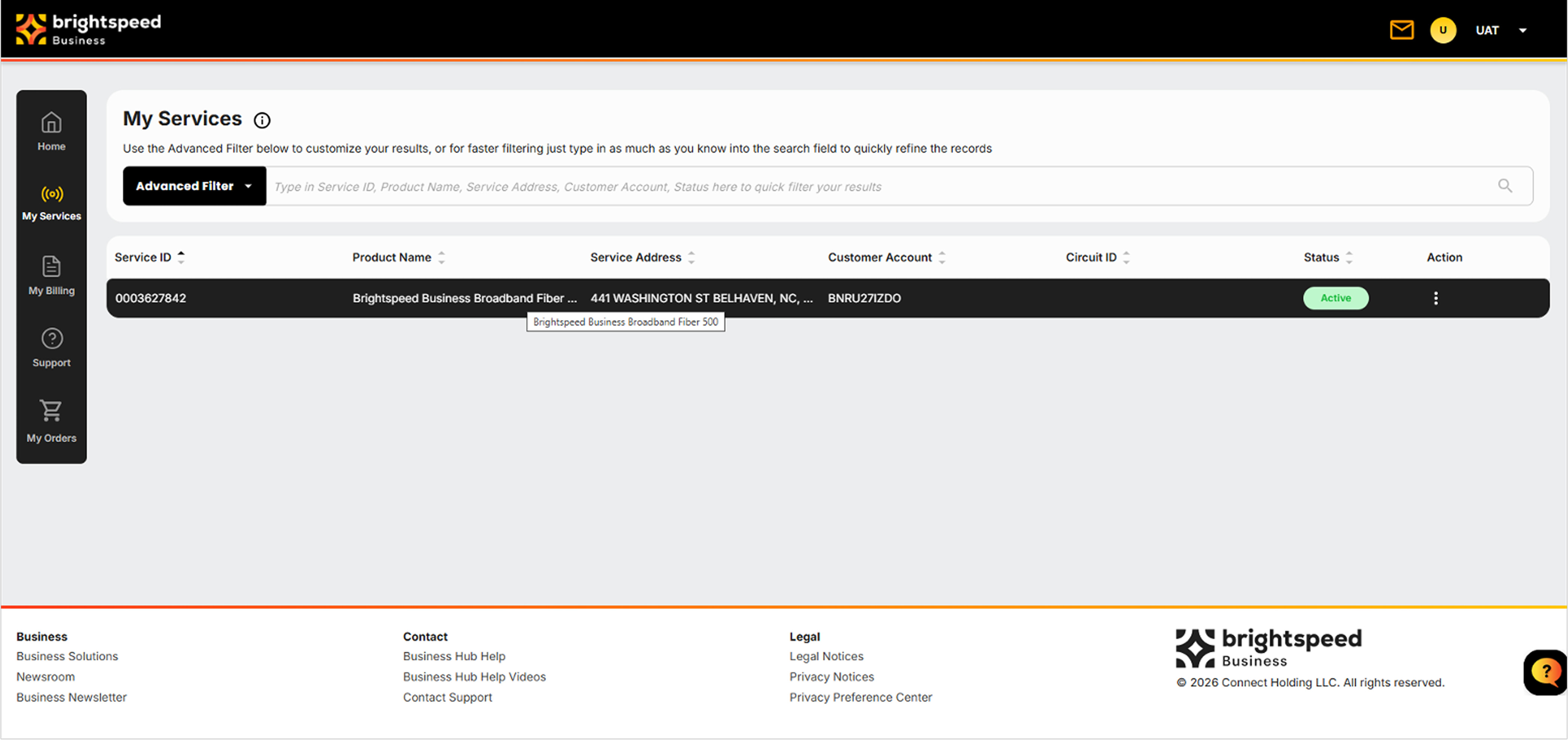
2. From the navigation bar, click My Services.
3. Select the Service you would like to run the speed test for.
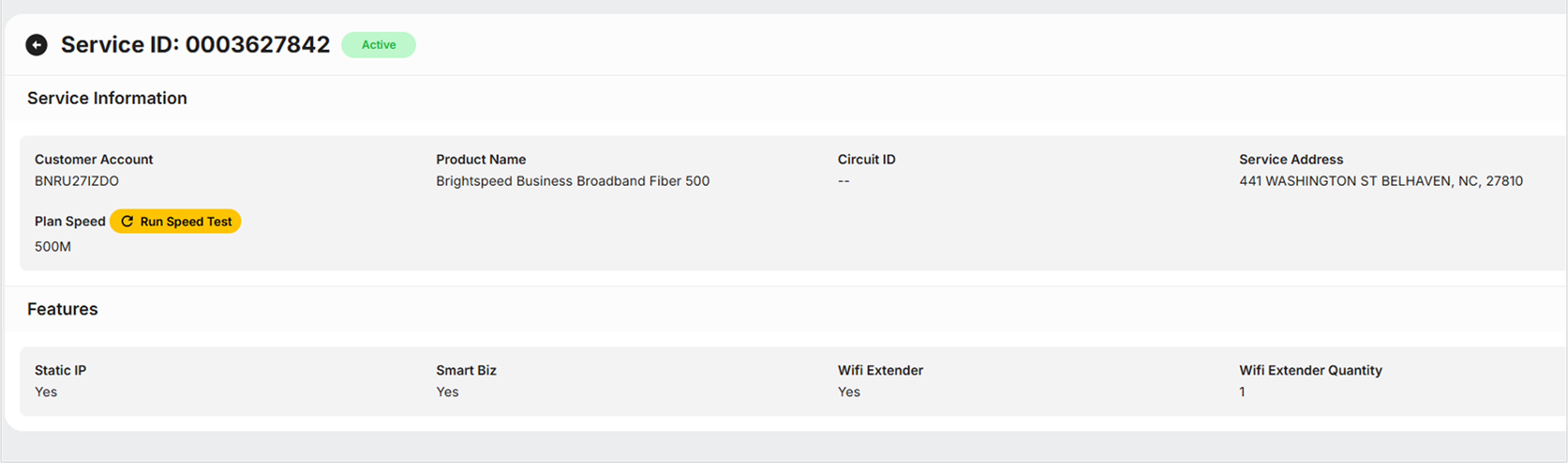
4. In the Service Information section, click the Run Speed Test button next to Plan Speed.
4. In the Service Information section, click the Run Speed Test button next to Plan Speed.
4. In the Service Information section, click the Run Speed Test button next to Plan Speed.
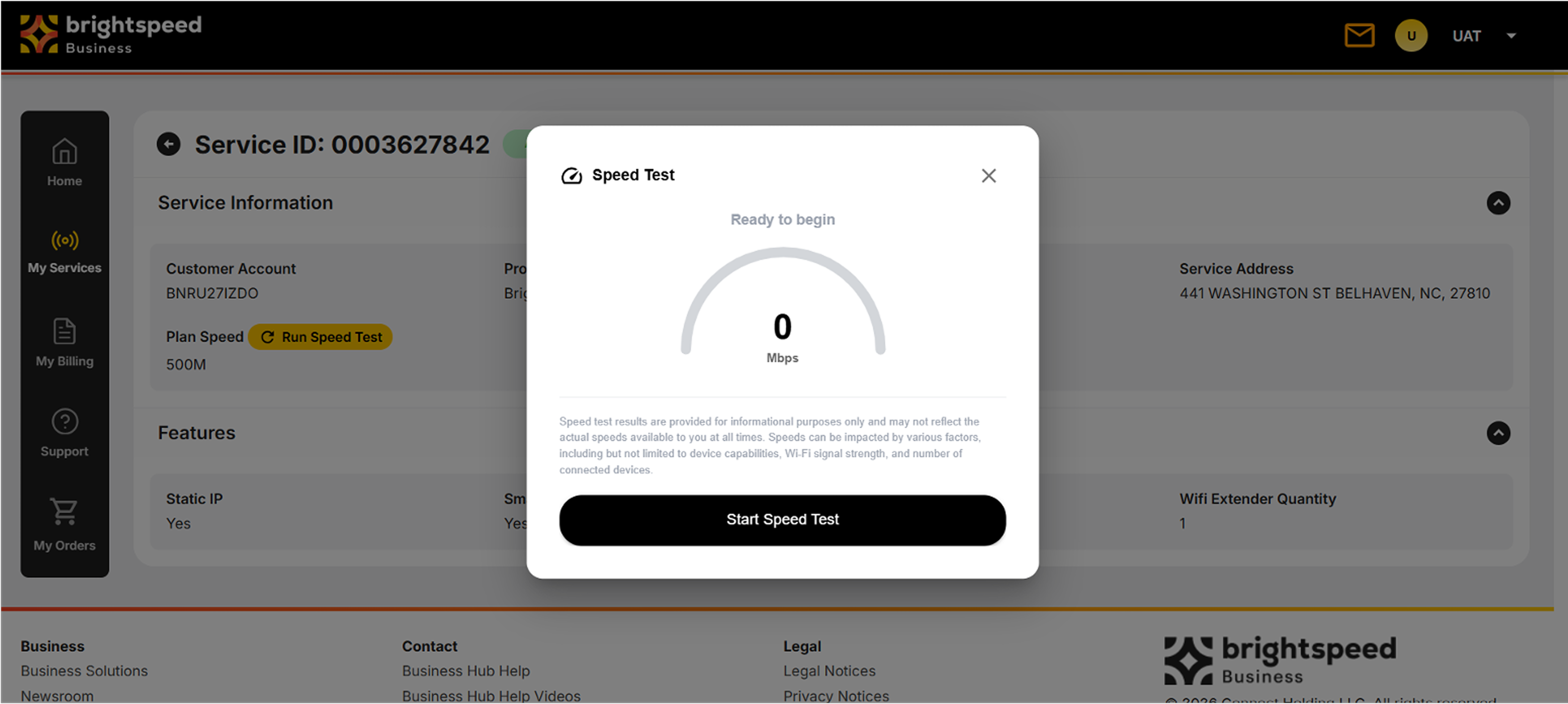
5. Click Start Speed Test on the pop-up window when you are ready to begin.
5. Click Start Speed Test on the pop-up window when you are ready to begin.
5. Click Start Speed Test on the pop-up window when you are ready to begin.
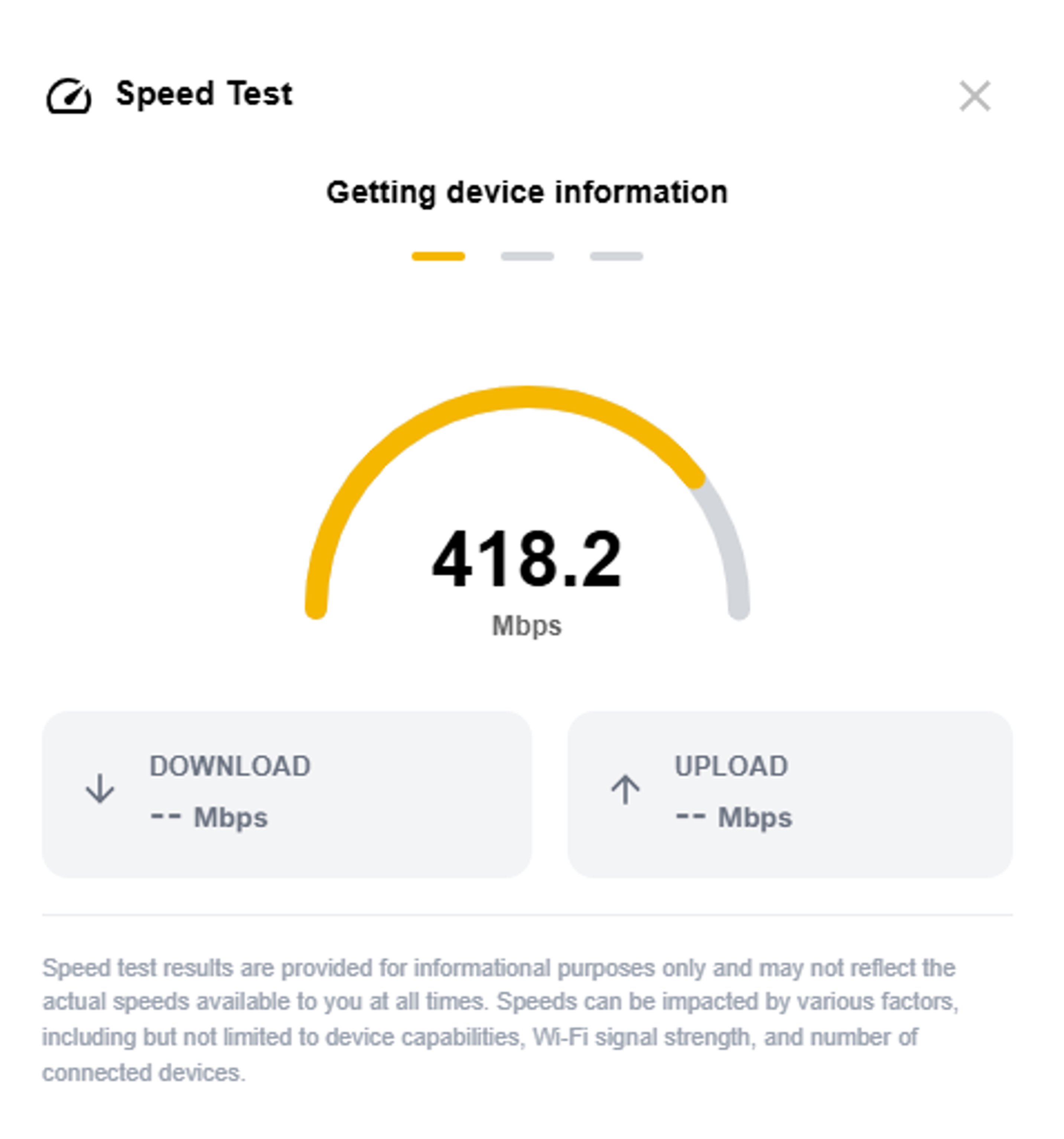
6. Wait while the test completes.
6. Wait while the test completes.
6. Wait while the test completes.
7. Review your results.
7. Review your results.
7. Review your results.
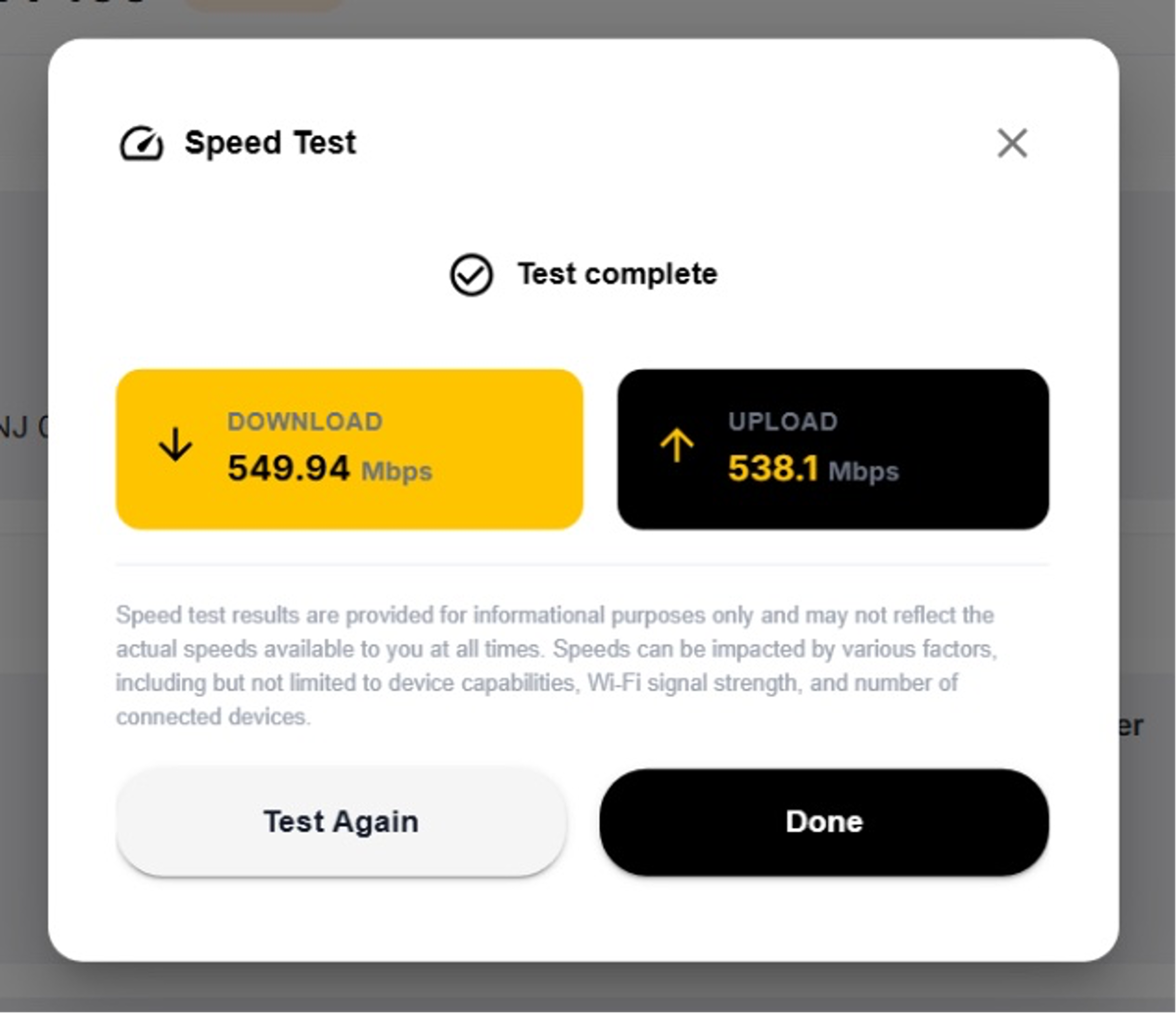
After the test finishes, you'll see several measurements.
If performance continues to be lower than expected, contact Brightspeed Business Support and have your speed test results available to help with troubleshooting.
After the test finishes, you'll see several measurements.
If performance continues to be lower than expected, contact Brightspeed Business Support and have your speed test results available to help with troubleshooting.
After the test finishes, you'll see several measurements.
If performance continues to be lower than expected, contact Brightspeed Business Support and have your speed test results available to help with troubleshooting.