

Brightspeed Business
Hub Support
Brightspeed Business
Hub Support
Brightspeed Business
Hub Support
 Sign in to Business Hub

Opening a Ticket
Opening a Ticket
Opening a Ticket
This guided workflow helps Brightspeed Business gather important details, troubleshoot potential issues, and route your request to the appropriate support team as quickly as possible. The following steps outline how to open a support ticket:
- Start Diagnostics: Click "Begin Diagnostic"
This guided workflow helps Brightspeed Business gather important details, troubleshoot potential issues, and route your request to the appropriate support team as quickly as possible. The following steps outline how to open a support ticket:
- Start Diagnostics: Click "Begin Diagnostic"
This guided workflow helps Brightspeed Business gather important details, troubleshoot potential issues, and route your request to the appropriate support team as quickly as possible. The following steps outline how to open a support ticket:
- Start Diagnostics: Click "Begin Diagnostic"
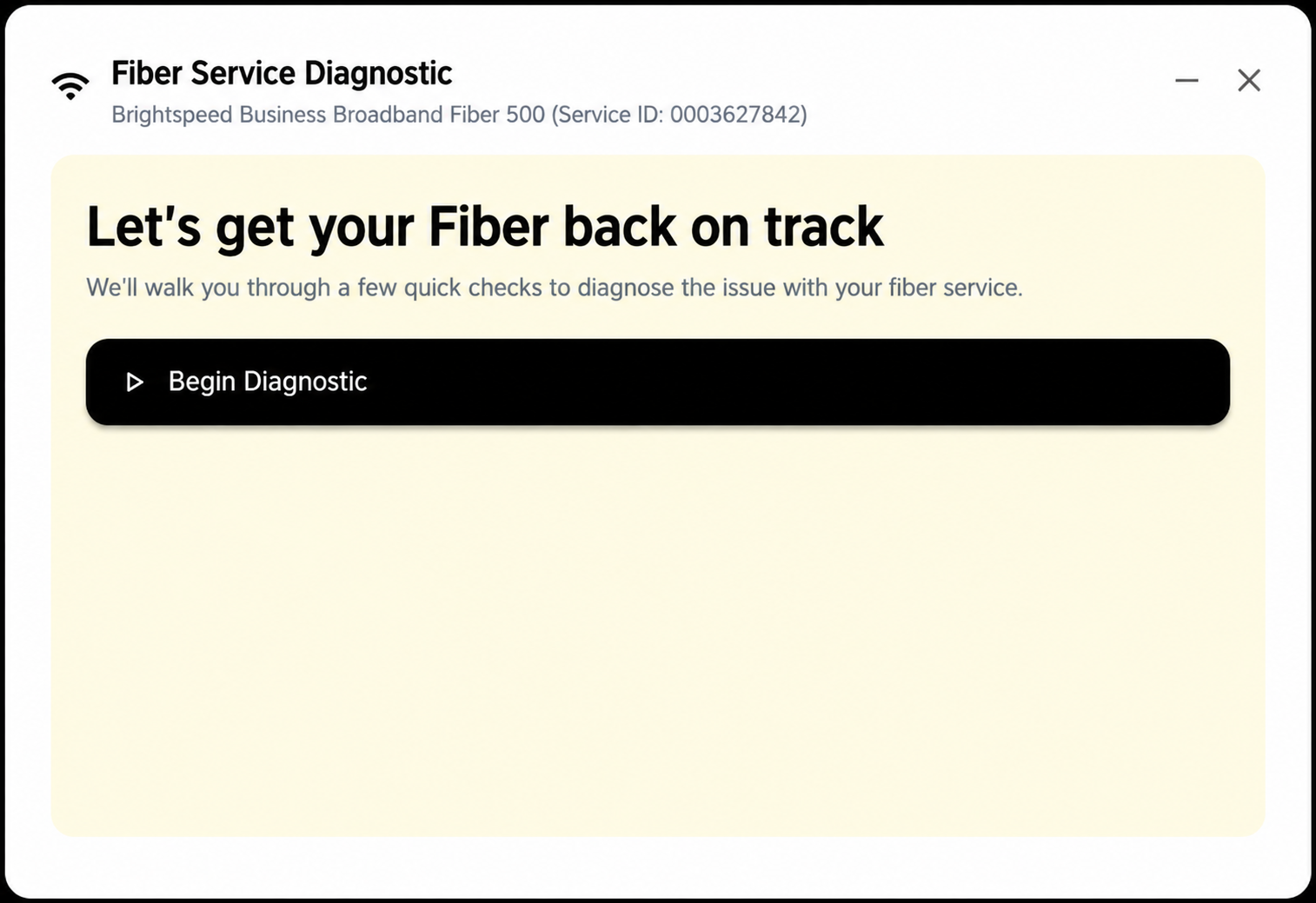
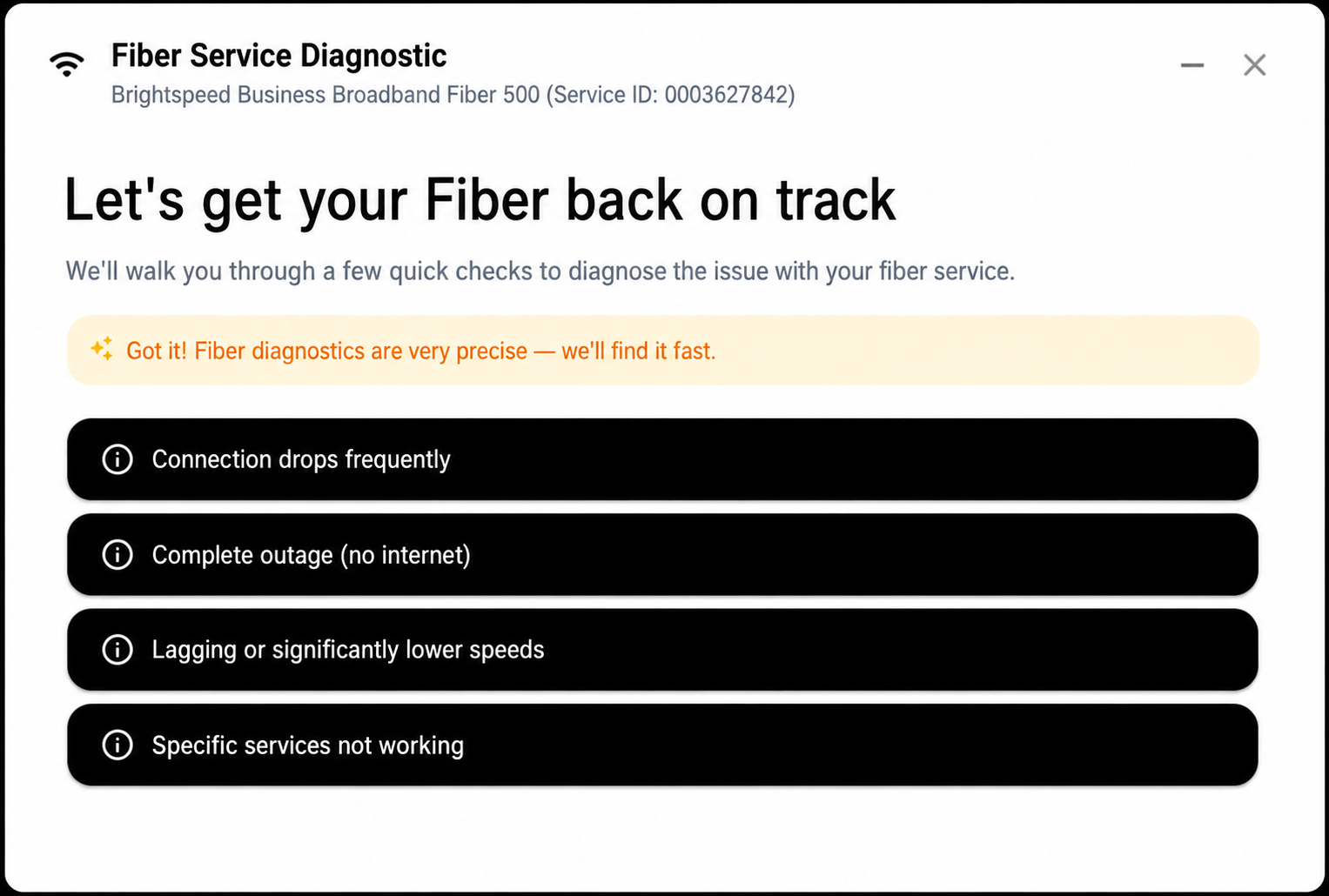
- Select Issue Type: Outage, slow speed, or connection issue
- Select Issue Type: Outage, slow speed, or connection issue
- Select Issue Type: Outage, slow speed, or connection issue
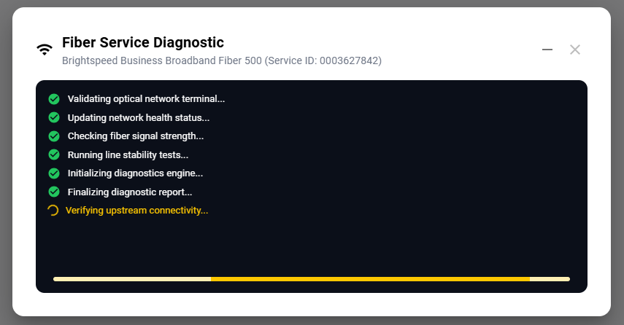
- System runs automated diagnostics
- System runs automated diagnostics
- System runs automated diagnostics
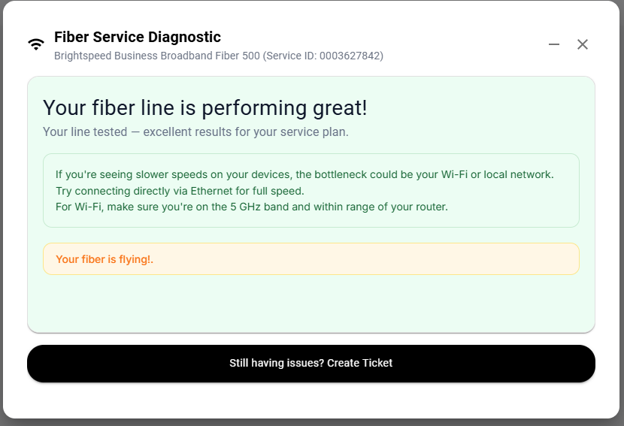
- Customer receives outcome and next steps.
- Customer receives outcome and next steps.
- Customer receives outcome and next steps.
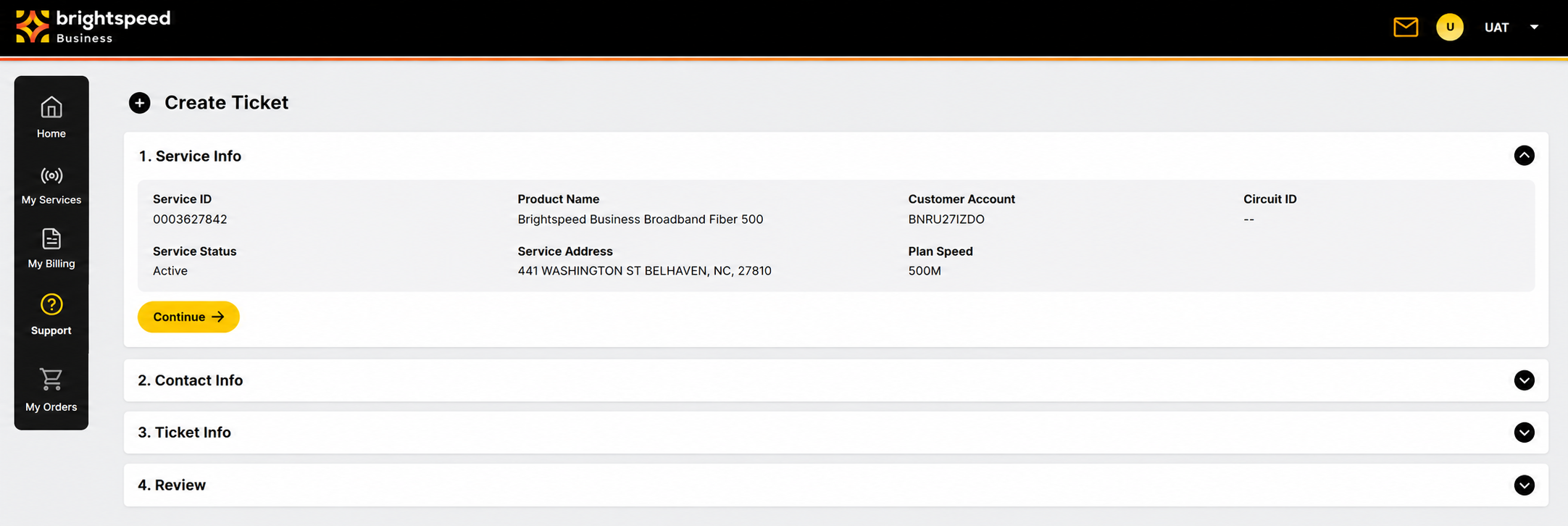
- Customer receives walkthrough verifying their Service Information. Click Continue to proceed.
- Customer receives walkthrough verifying their Service Information. Click Continue to proceed.
- Customer receives walkthrough verifying their Service Information. Click Continue to proceed.
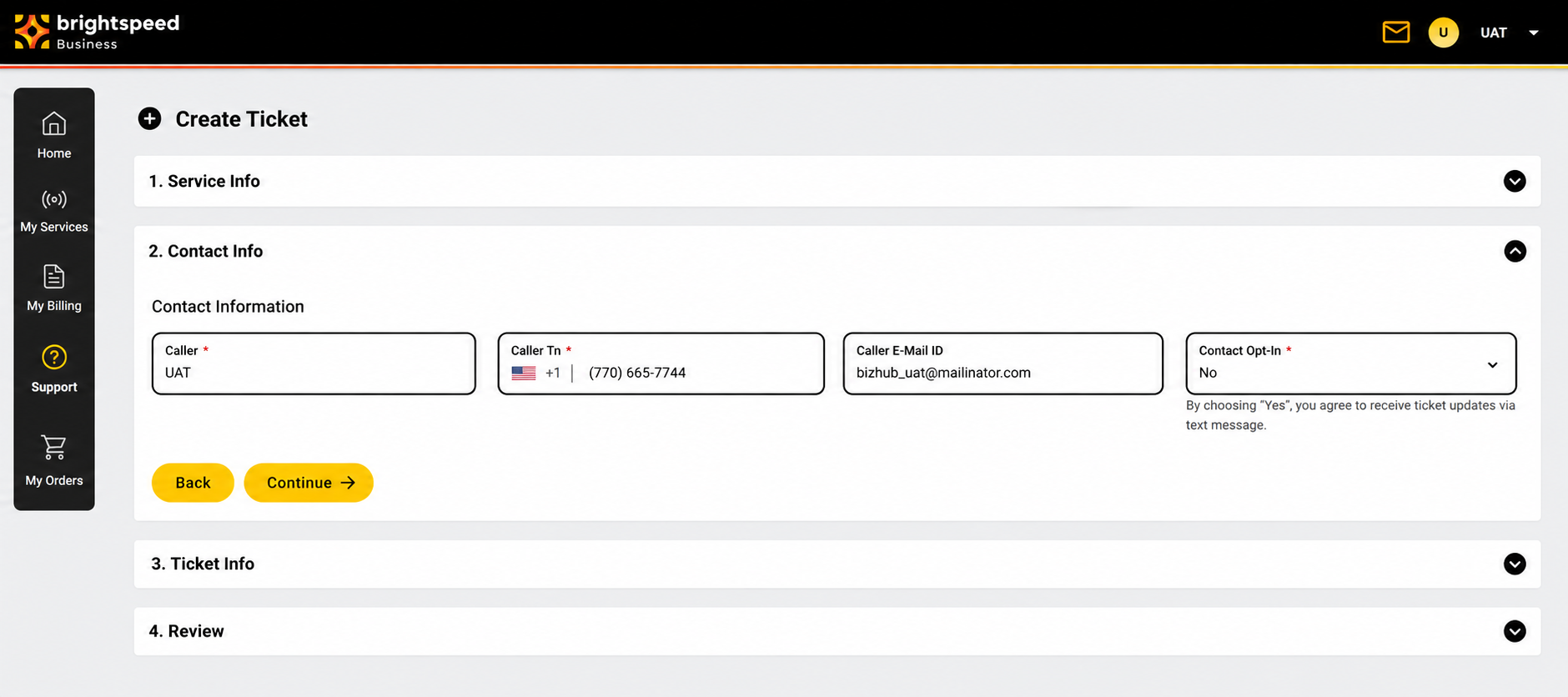
- Customer will be able to update or change their contact information and opt-in for SMS updates. Click Continue to proceed.
- Customer will be able to update or change their contact information and opt-in for SMS updates. Click Continue to proceed.
- Customer will be able to update or change their contact information and opt-in for SMS updates. Click Continue to proceed.
- The Business Hub will have prepopulated the customer’s Problem Brief and Description based on their selection during the diagnostics window. Customers can add additional information if desired. Click Continue to proceed.
- The Business Hub will have prepopulated the customer’s Problem Brief and Description based on their selection during the diagnostics window. Customers can add additional information if desired. Click Continue to proceed.
- The Business Hub will have prepopulated the customer’s Problem Brief and Description based on their selection during the diagnostics window. Customers can add additional information if desired. Click Continue to proceed.

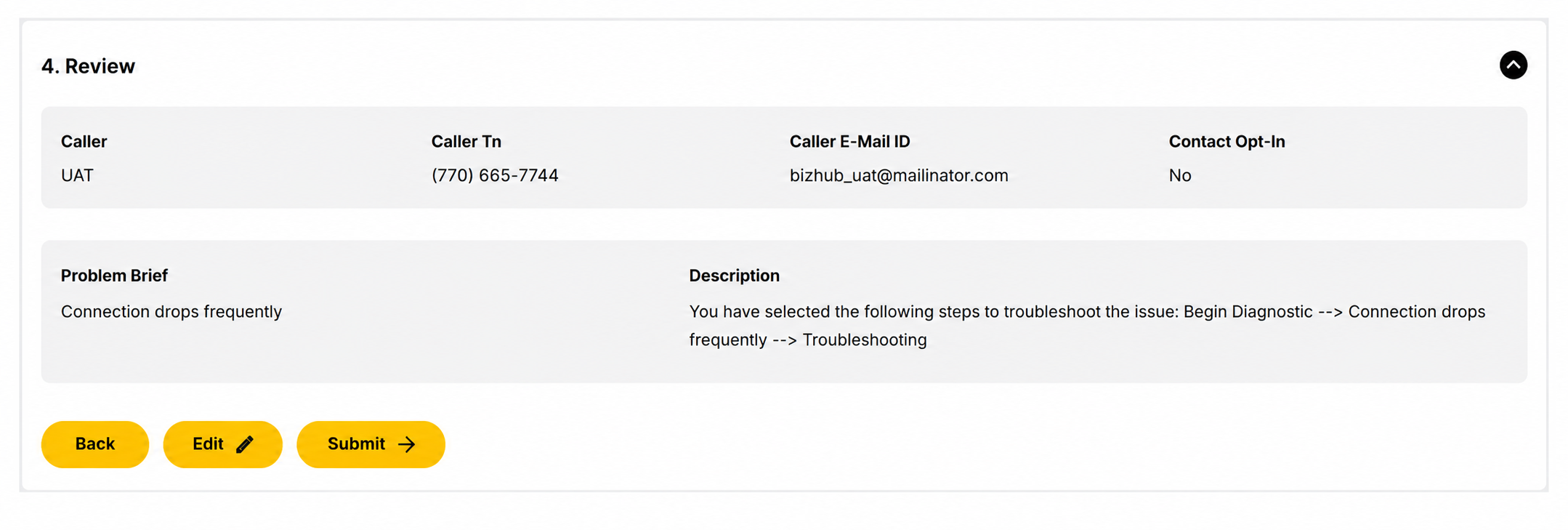
- Customers will then have a chance to review the primary details and edit if needed. Click Submit to finish creating the ticket.
- Customers will then have a chance to review the primary details and edit if needed. Click Submit to finish creating the ticket.
- Customers will then have a chance to review the primary details and edit if needed. Click Submit to finish creating the ticket.
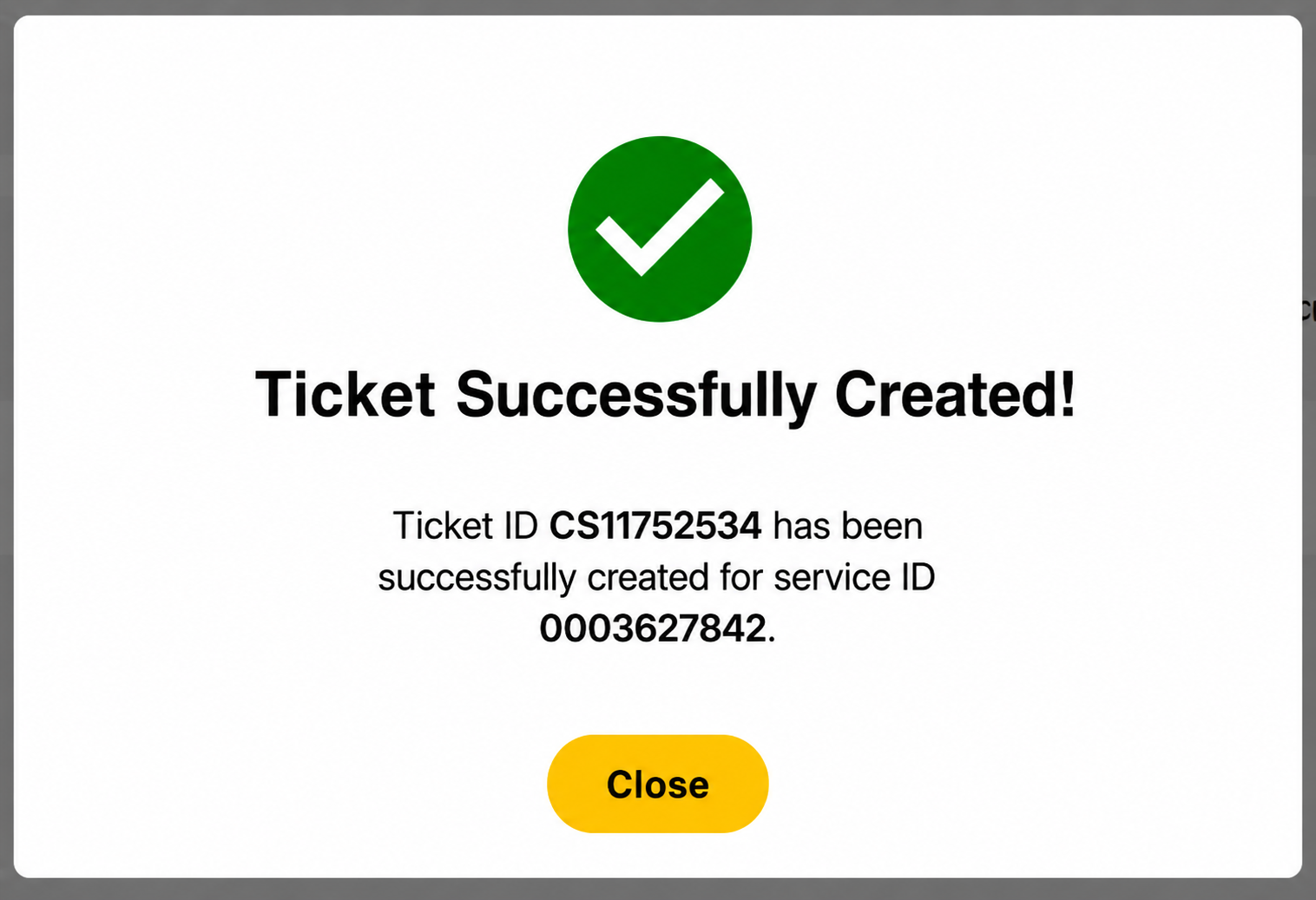
- When the ticket is created, the following message will appear on screen letting the user know that their ticket was successfully created and provide the ticket number.
- When the ticket is created, the following message will appear on screen letting the user know that their ticket was successfully created and provide the ticket number.
- When the ticket is created, the following message will appear on screen letting the user know that their ticket was successfully created and provide the ticket number.